-
Erstellt von
 Sebastian Rennert, zuletzt aktualisiert von Daniel Peters am Mai 22, 2025
Lesedauer: 5 Minute(n)
Sebastian Rennert, zuletzt aktualisiert von Daniel Peters am Mai 22, 2025
Lesedauer: 5 Minute(n)

- Sie benötigen ein Apple iOS oder ein Google Android Endgerät.
- Sie benötigen eine aktive Internetverbindung.
- Sie benötigen einen gültigen Freischaltcode der FH Münster.

You need an Apple iOS or Google Android device.
You need an active internet connection
You need a valid activation code of the FH Münster
Wenn Sie die Voraussetzungen erfüllen, können Sie folgende Schritte ausführen:

- Öffnen Sie mit Ihrem Android Gerät folgende Webseite: https://getaegis.app/
- Sie können die App über den Google Play Store oder den F-Droid Appstore herunterladen
- In dieser Anleitung wird die Installation über den Google Play Store erklärt.
- Open the following website with your Android device: https://getaegis.app/
- You can download the app via the Google Play Store or the F-Droid Appstore
- These guide explains how to install the app via the Google Play Store

- Suchen Sie im Google Playstore nach "Aegis Authenticator" und installieren Sie die Anwendung.
- Search for "Aegis Authenticator" in the Google Play Store and install the application.

- Öffnen Sie die heruntergeladene App.
- Open the downloaded App

- Klicken Sie auf der Seite „Willkommen“ unten rechts auf den Button „Weiter“, der wie ein Pfeil aussieht.
Wählen Sie auf der Seite „Sicherheit“ der App die von Ihnen gewünschte Option aus. Wenn Ihr Handy nicht ausreichend geschützt ist, empfehlen wir Ihnen, ein Passwort zu setzen.
Klicken Sie auf der Seite „Einrichtung abgeschlossen“ unten rechts erneut auf den Button „Weiter“, der wie ein Pfeil aussieht.
- On the "Welcome" page of the app, click the 'Next' button at the bottom right, which looks like an arrow.
- Choose the option you want on the ‘Security’ page of the app. If your mobile phone is not sufficiently protected, we recommend that you set a password.
- On the ‘Setup complete’ page at the bottom right, click on the button ‘Next’ at the bottom right, which looks like an arrow.

- Fügen Sie nun einen neuen Eintrag ein, indem Sie auf das + Symbol klicken.
- Add a new entry by clicking on the + symbol.

- Wählen Sie nun "QR-Code scannen" aus , um den im myFh-Portal generierten QR-Freischaltcode zu scannen.
- Select ‘Scan QR code’ to scan the QR activation code generated in the myFH portal.
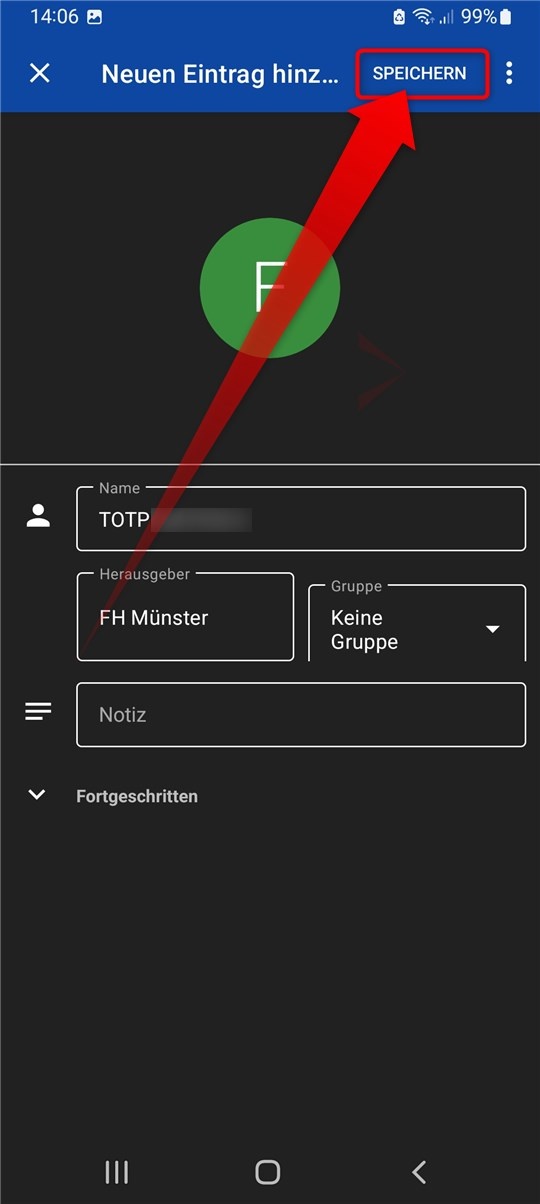
- Nach dem Scannen wird Ihnen umgehend ein neuer Eintrag „FH Münster“ in der App angezeigt.
- Klicken Sie auf „Speichern“, um den Eintrag in der App hinzuzufügen.
- After scanning, you will immediately see a new entry ‘FH Münster’ in the app.
- Click on ‘Save’ to add the entry to the app.
- Click on ‘Save’ to add the entry to the app.
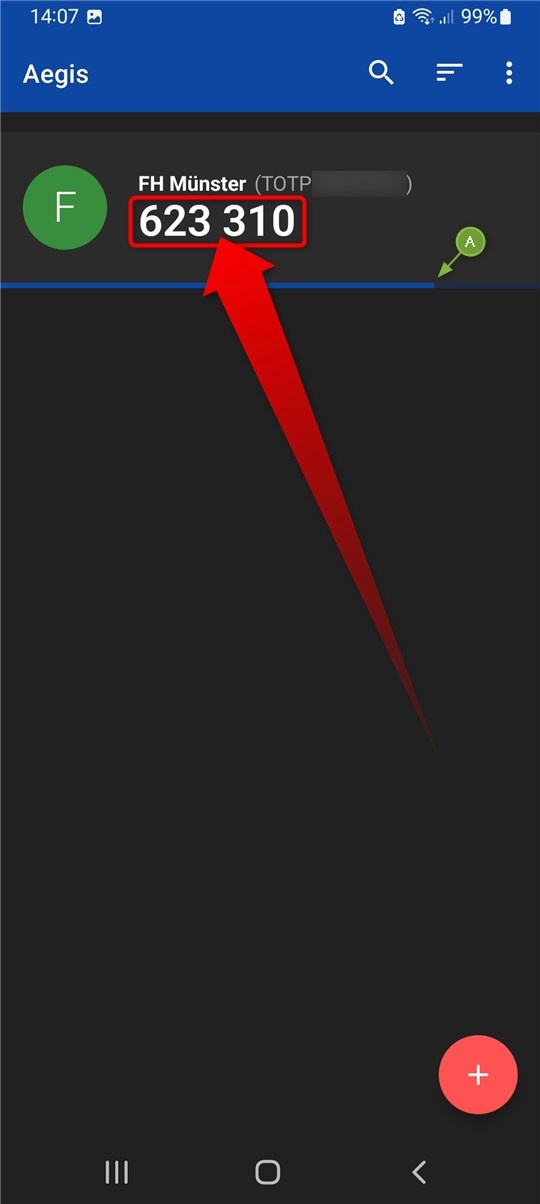
- Die App generiert anschließend fortlaufend 6stellige PIN Nummern.
- Diese Nummer ist der zweite Faktor (Token) für Ihre Anmeldung.
- The app generates a changing, time-limited 6-digit number.
- This number is the second factor (token) for your login.
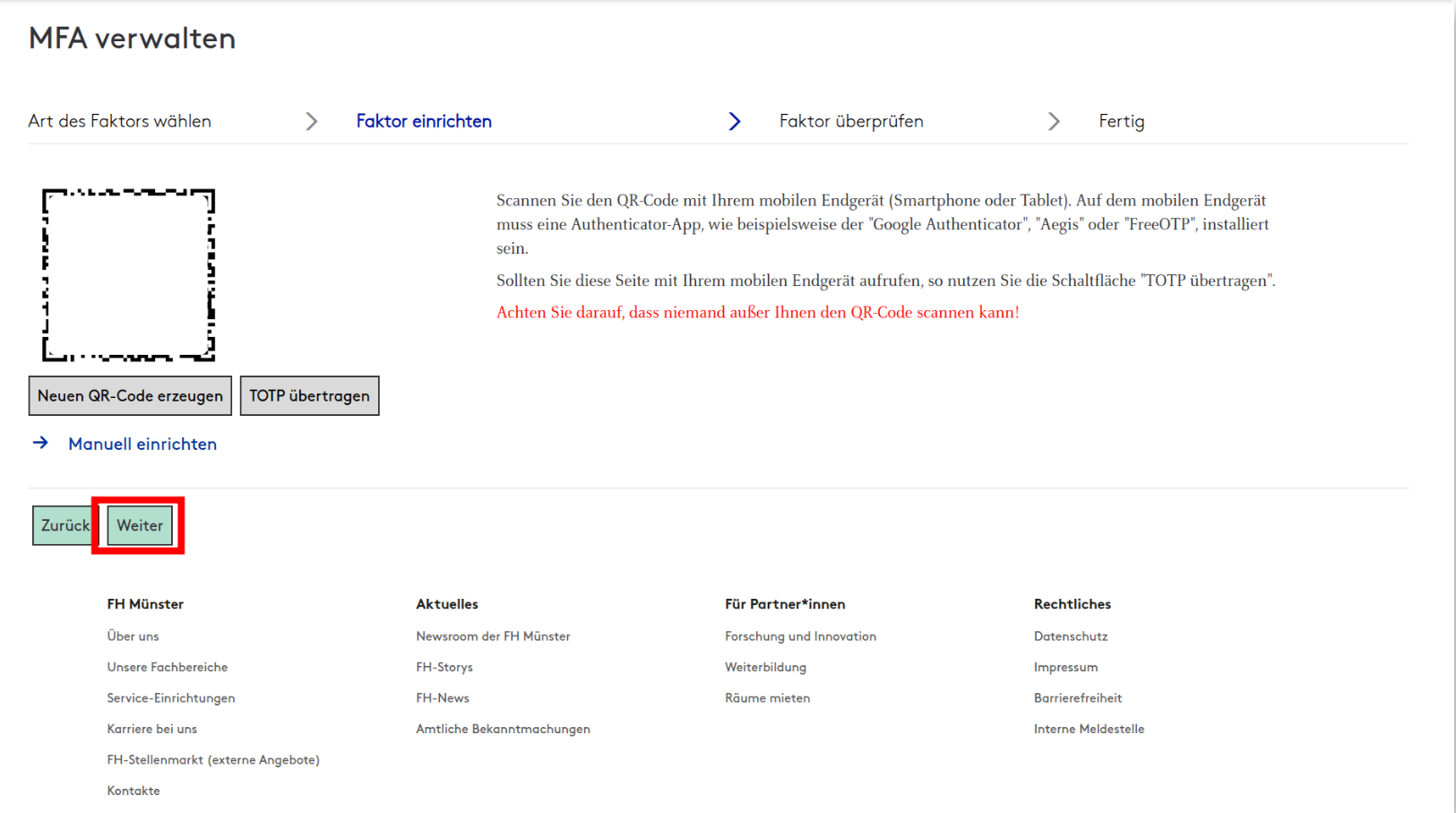
- Bitte beachten Sie, dass die Einrichtung im myFH-Portal noch nicht abgeschlossen ist.
- Klicken Sie auf der Seite mit dem QR-Freischaltcode im myFH-Portal nun auf "Weiter".
- Please note that the setup in the myFH portal is not yet complete.
- Click on ‘Continue’ on the page with the QR activation code in the myFH portal.
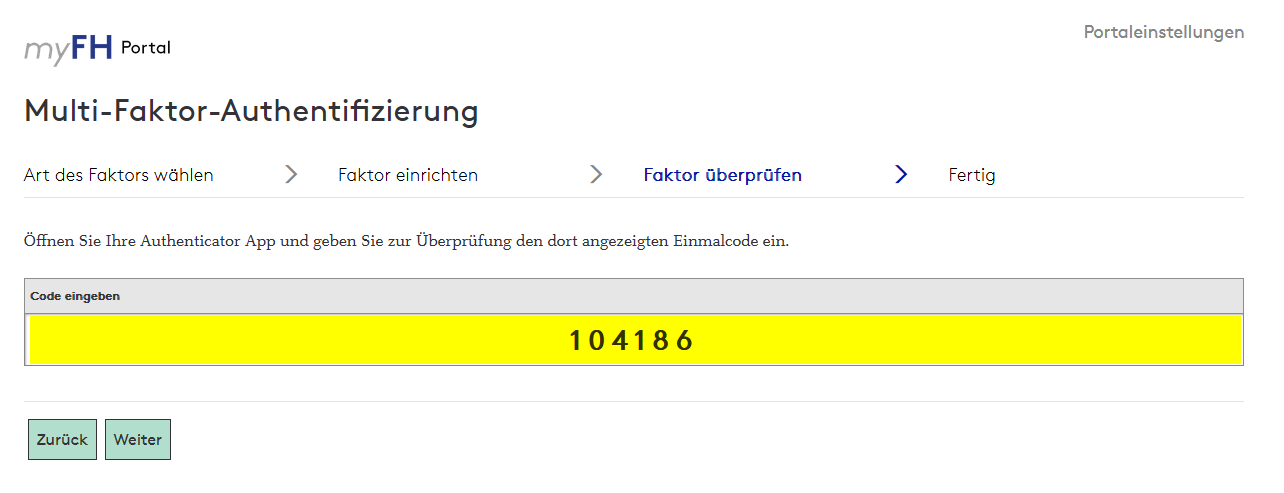
- Tragen Sie nun das aktuelle Token aus der eingerichteten Applikation ein.
- Klicken Sie anschließend auf „Weiter“.
Achten Sie darauf, dass auf dem Gerät, mit dem Sie den Code generieren, die Uhrzeit auf die Sekunde genau korrekt eingestellt sein muss, sonst wird möglicherweise ein falscher Code generiert.
- Now enter the current token from the application you have set up.
- Then click on 'Next'
Make sure that the time on the device you are using to generate the code is set correctly to the second, otherwise an incorrect code may be generated.
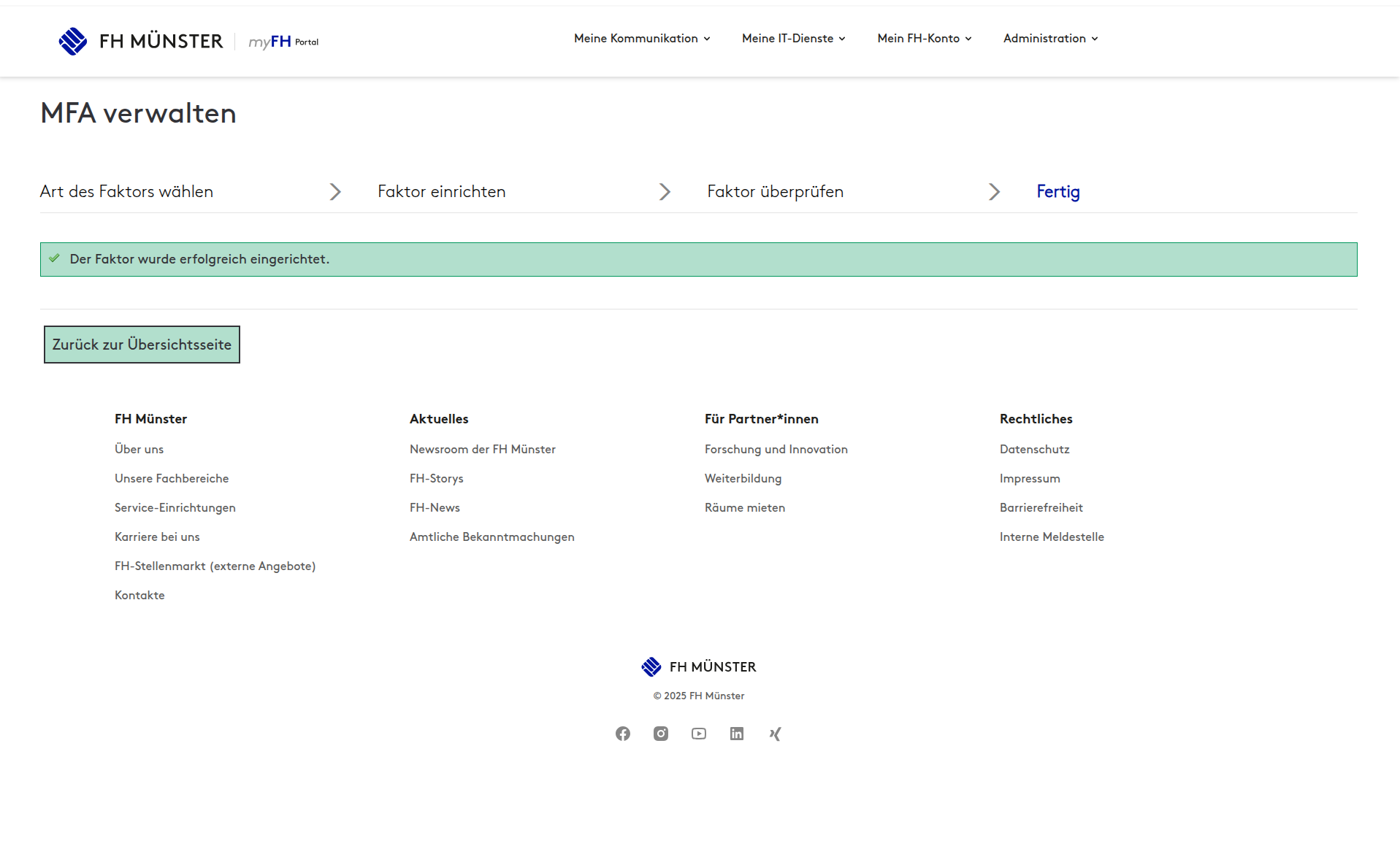
- Der Faktor ist nun erfolgreich eingerichtet und kann genutzt werden.
- The factor has been successfully set up and can be used.